
Please use the following search box to quickly locate valuable FAQ support guide.
You can use key words or full statement to search by. Alternatively you can simply browse by Category belowThere have been cases where some capture PCs failed to boot into Windows. We have identified the cause of this issue as corrupted or missing IRST (Intel Rapid Storage Technology) drivers. To address this, the following instructions outline the correct procedure for installing the IRST drivers. Because reinstalling the IRST drivers also requires reinstalling Windows 11, the full Windows 11 installation steps are included in this manual as well.
Please also see Dell Bios Update Steps FAQ guide as well after apply the RST driver update.
Before starting the IRST driver and Windows 11 installation, please ensure the PC has a physical Ethernet connection with active internet access. Also, make sure the Windows 11 installation drive is connected to the PC before powering it on and make sure to update the BIOS to the latest version prior to IRST driver and Windows 11 installation.
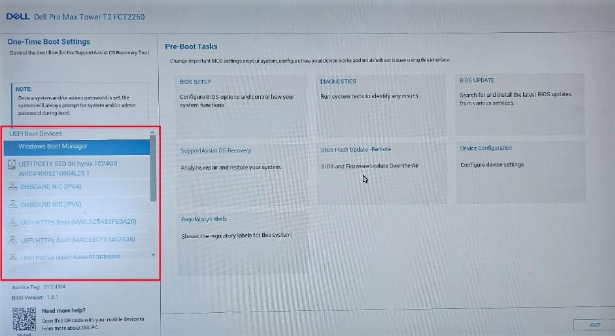
Power on the PC and repeatedly press F12 until the One-Time Boot Settings menu appears. Select the USB installation drive under UEFI Boot Devices list on the left side of the screen.
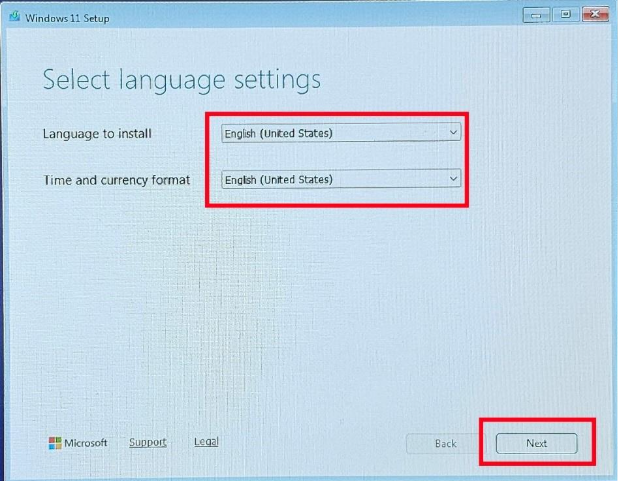
Select the language for setup in the Select Language Settings screen then click Next.
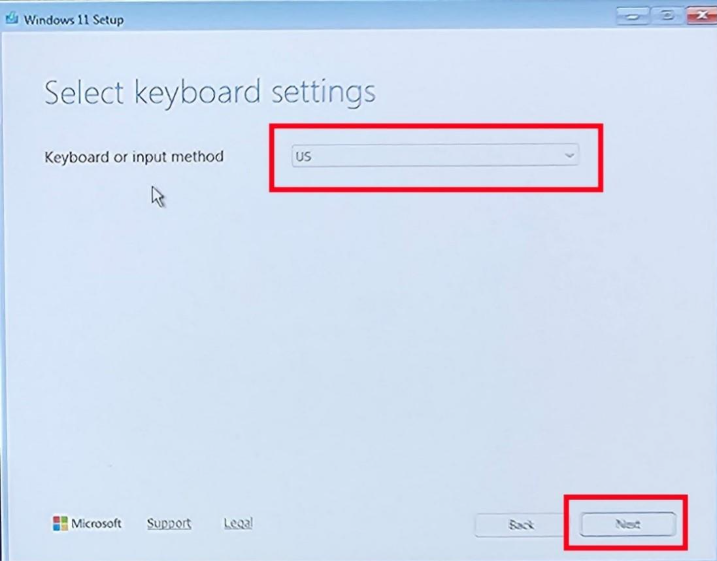
Select the keyboard or input method for setup in the Select Keyboard Settings screen then click Next.
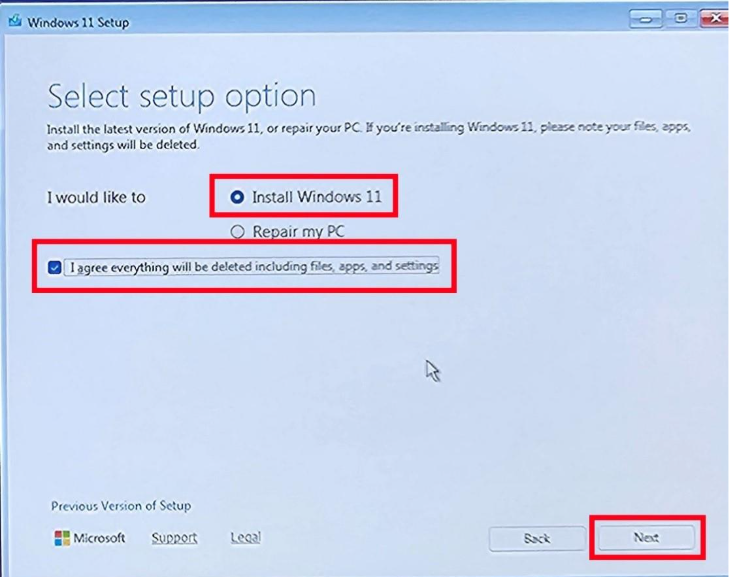
In the Select Setup Option screen select Install Windows 11 and check I agreed everything will be deleted including files, apps, and settings before clicking Next.
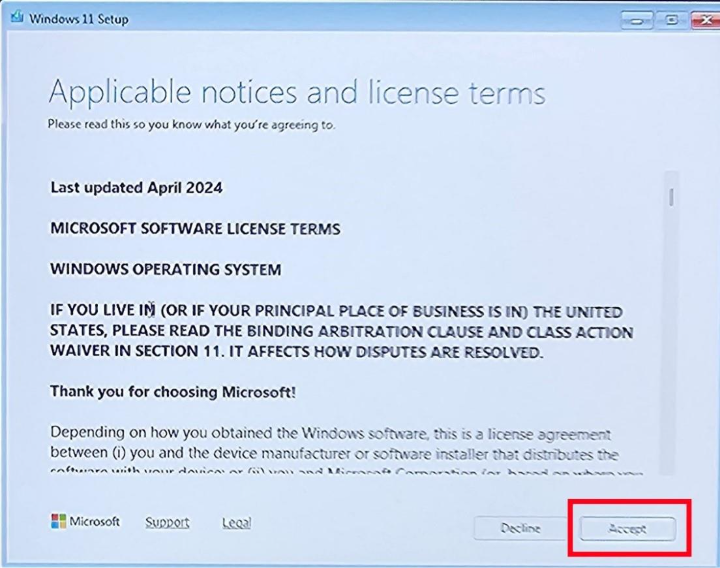
Scroll through the Applicable notices and license terms then click Accept.
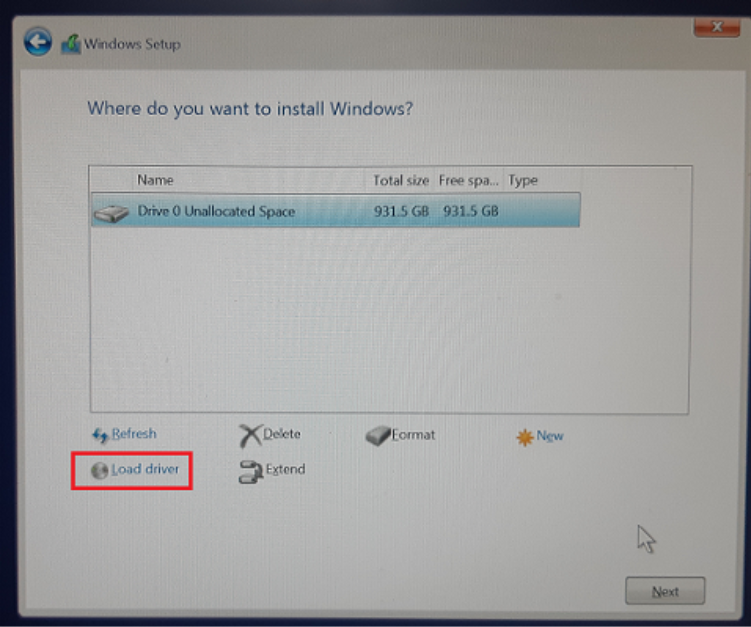
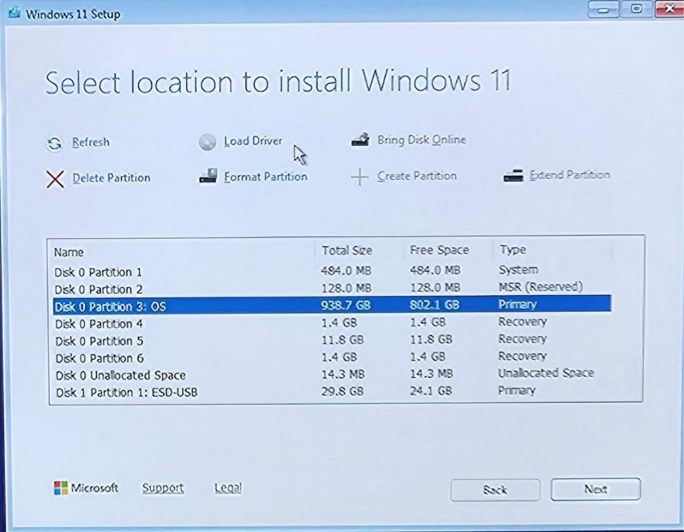
If you only see the USB installation drive in the Where do you want to install Windows screen, click Load driver. If you are able see the OS partition in this list, please skip to step 10 and continue.
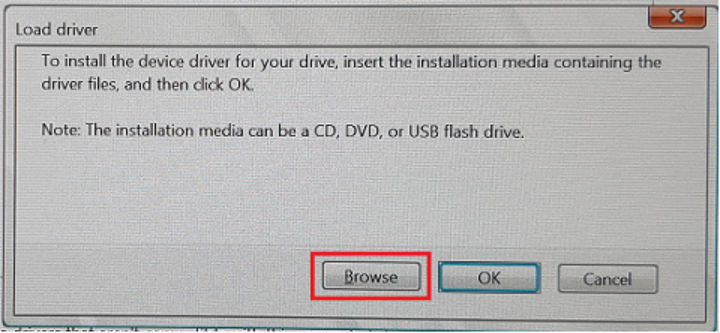
In the Load Driver screen click Browse.
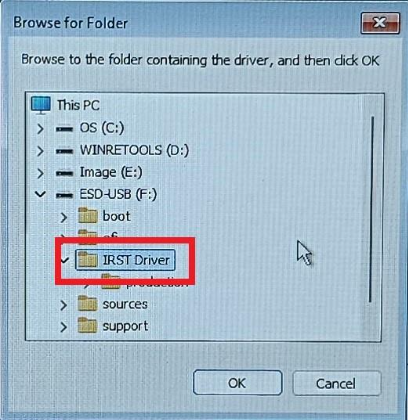
In the Browse the Folder screen, browse to and select the IRST Driver folder in the USB drive then click OK.
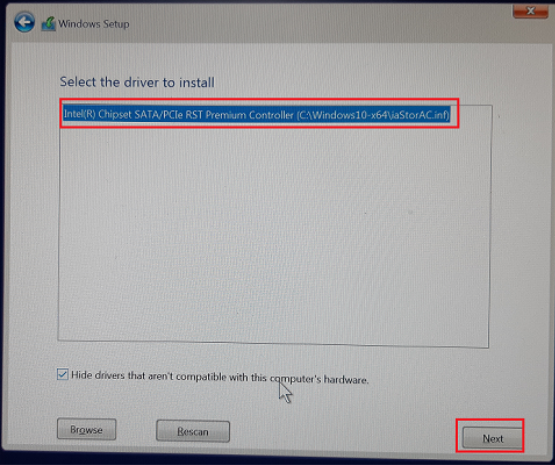
In the Select the driver to install screen select the option as displayed in the image below.
Once the driver is successfully installed you will return to the Where do you want to install Windows menu. You should now see all partitions on the internal drive and the USB installation drive partition in the list. Choose the OS partition from the list and click Next.
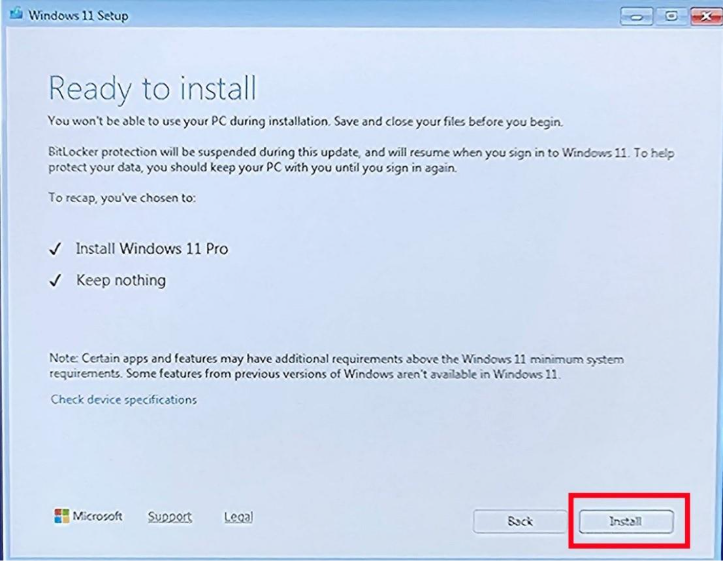
In the Ready to Install screen, click Install when it is ready. The Windows 11 installation will begin. The installation process can take about 3 hours to complete.