
Please use the following search box to quickly locate valuable FAQ support guide.
You can use key words or full statement to search by. Alternatively you can simply browse by Category belowCleverOne Failed Segmentation Server & DTKS Startup issues typically occur under a variety of issues due to restrictions or limitations by Windows policies, Firewall blocking, Smart App, UAC and other aspects. In some cases simply changing user profile elevations can cause the program no longer to startup correctly.
FIrst verify the program is able to start normally by manually starting the DTKS Agent.
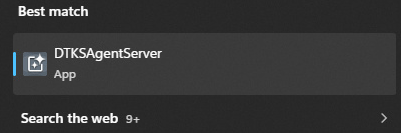
In the Windows Search bar type 'DTKSAgentServer'

Select the DTKSAgentServer
-If it DTKS does not launch and has some message such as UAC, Windows Firewall or Smart App Control blocking, then IT should disable add permisisons to allow the DTKS into which ever application is blocking it or disable the restrictive application that is blocking it.
-If DTKS launches normally with out restriction, then adding a Windows Task Schedual is key for proper startups.
Adding Task Scheduler automatic startup:
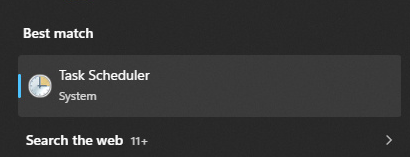
In the Windows Search bar type 'Task Scheduler'

Select 'Task Scheduler':
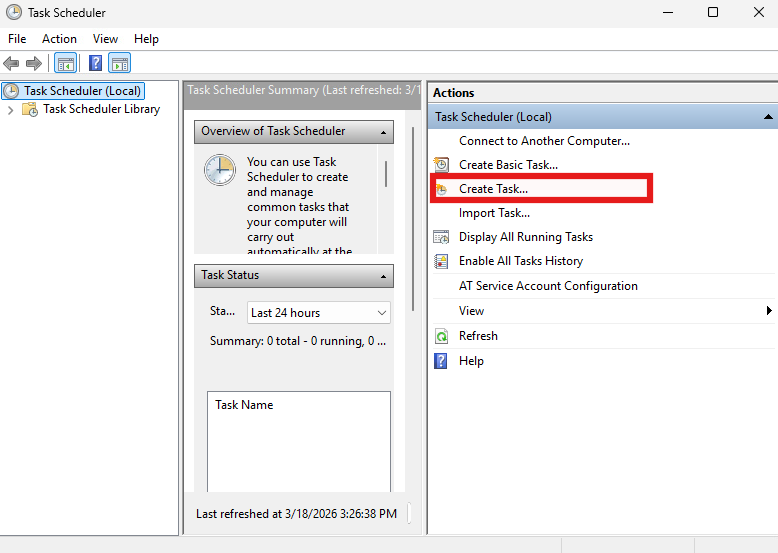
Click 'Select Task'
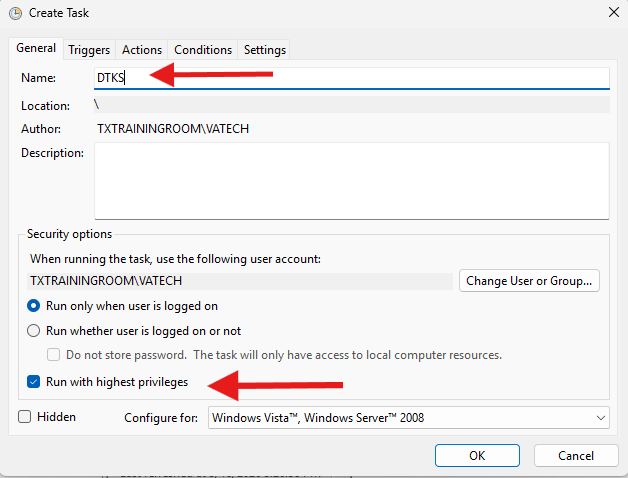
Give the startup task a name, in this Example 'DTKS' will be use., select 'Run with highest privileges'
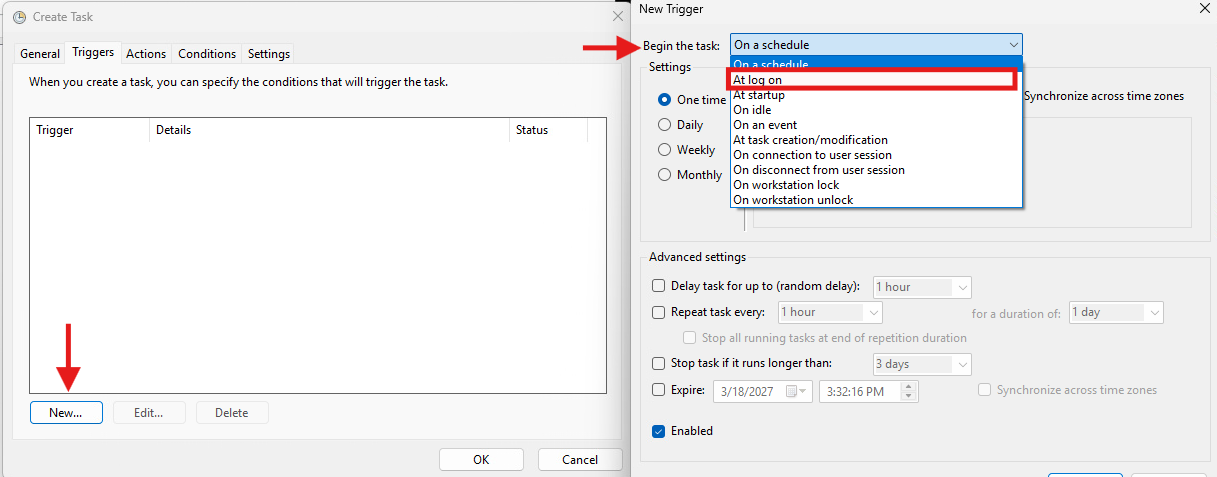
Select the 'Triggers' Tab, Click 'New', on the New Triggers Window, click the drop down and select 'At log on'. Click 'Ok'
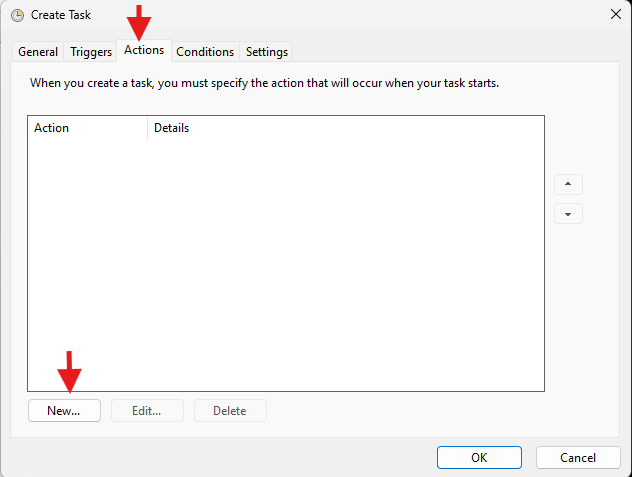
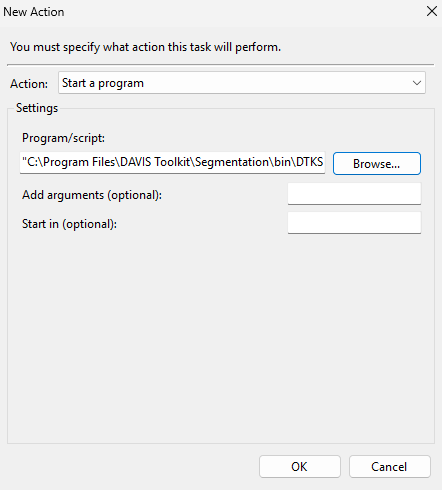
Click the Actions Tab, Click 'New'
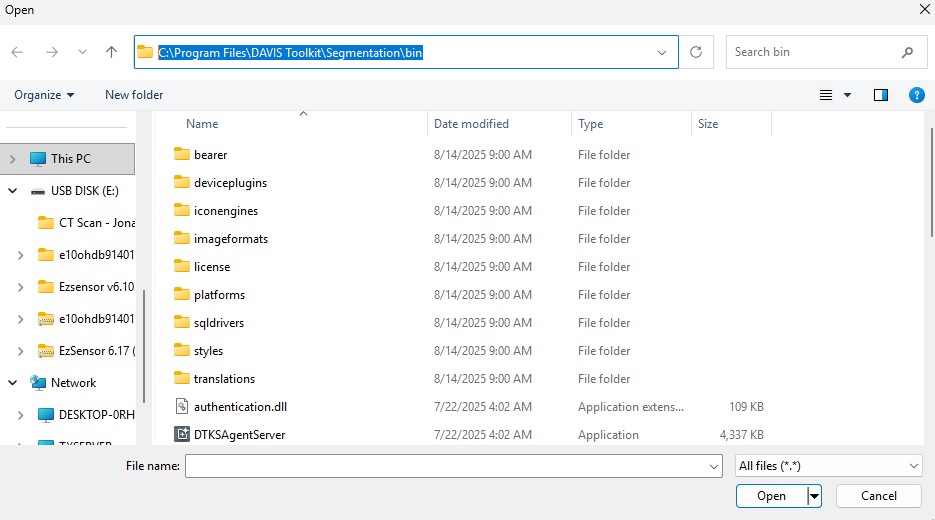
Click the 'Browse' button
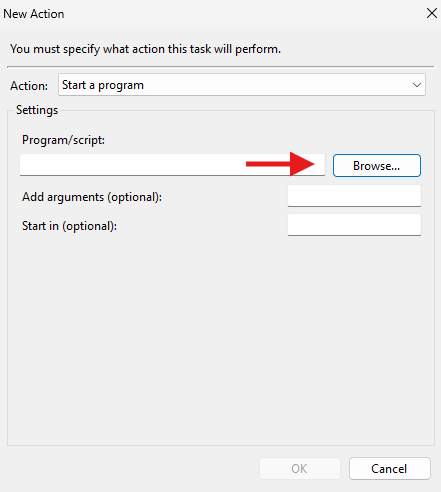
A Windows browse box will now open, you will want to navigate to this folder:
C:\Program Files\DAVIS Toolkit\Segmentation\bin and select the DTKSAgentServer.exe Click 'Open'
Click 'Ok'
Optional: CLick the Settings Tab,
-Click the 'Run Task as soon as possible after a scheduled start is missed
-Click the 'If task fails, restart every:
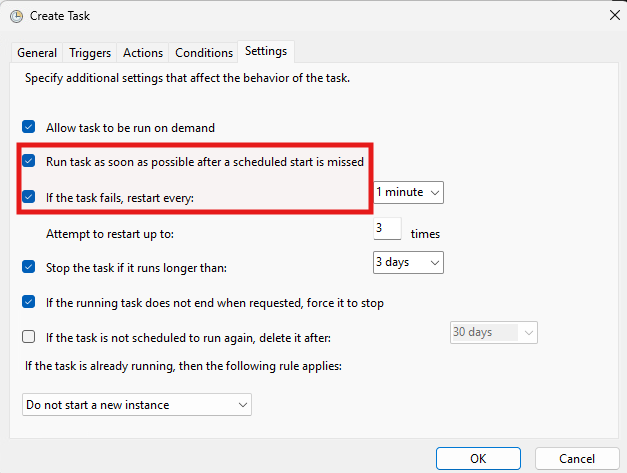
Click 'Ok' to save the Task