
EzScan: How to Recover Unsaved STL Image

Written on Feb 16, 2026

In the event while scanning patient, the image does not save the STL file to EzDent-i follow the following steps to recover the unsaved image. 

 

  • Open EzDent-i and open the desired patient chart as normal. 
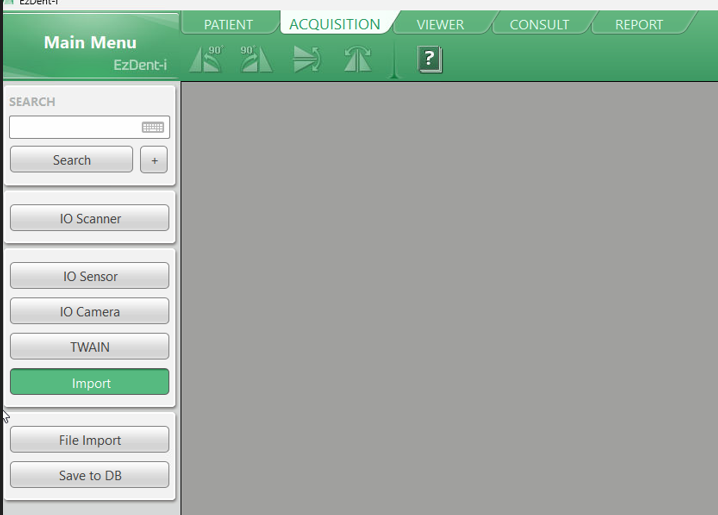
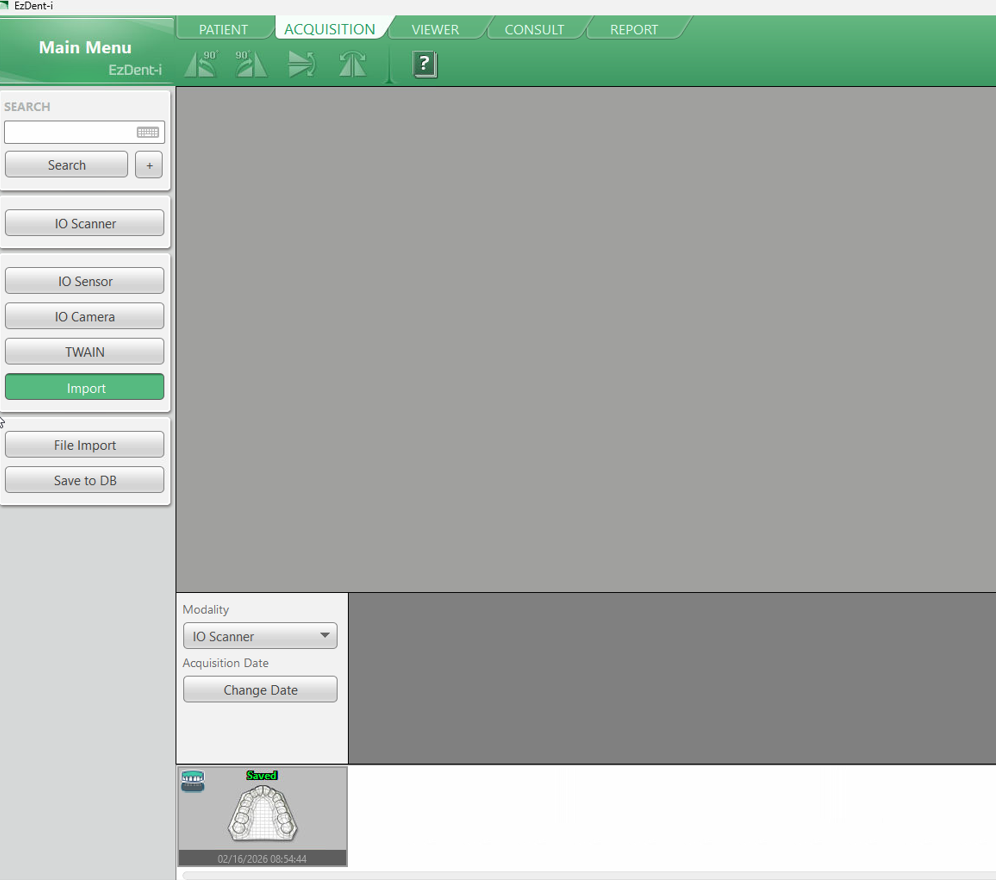
  • Under Click Acquisition Tab


  • click 'Import' , Select in the drop down 'IO Scanner


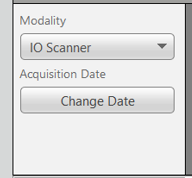
  • Select in the Modality drop down 'IO Scanner' 


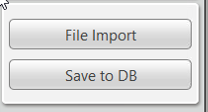
  • Click 'File Import' 

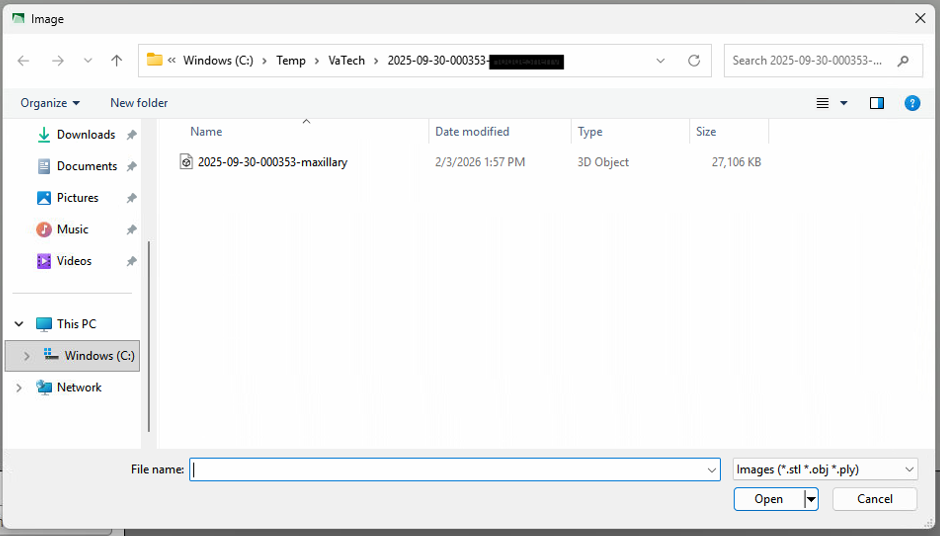
  • Windows Browse Window will now appear.
    The Temp directory of EzScan is: C:\Temp\VaTech\ 
  • Browse to this location, once here you will see each patient by Series and Name, select the desired patient and open the file location. 
  • Select the STL file, this will normally show as '3D Object' under the Type of image. 

    Example: 

     
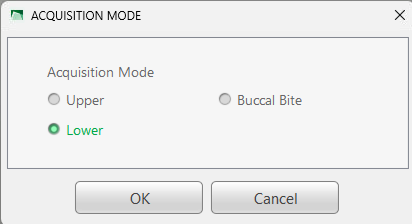
  • Once the desired image is selected click Open, it will now prompt which Arch to select, select the proper Arch Type and click Ok. 


  • The Image preview will now load into EzDent-i 
  • If the Date of Capture needs to be changed, click Change Date and choose the desired date. 
  • Click Save to DB to save the image. 

    Example: 


Related Products

Counts indicate more articles with the same products